10 Boring Tasks You Should Automate Right Now (And Exactly How to Do It)
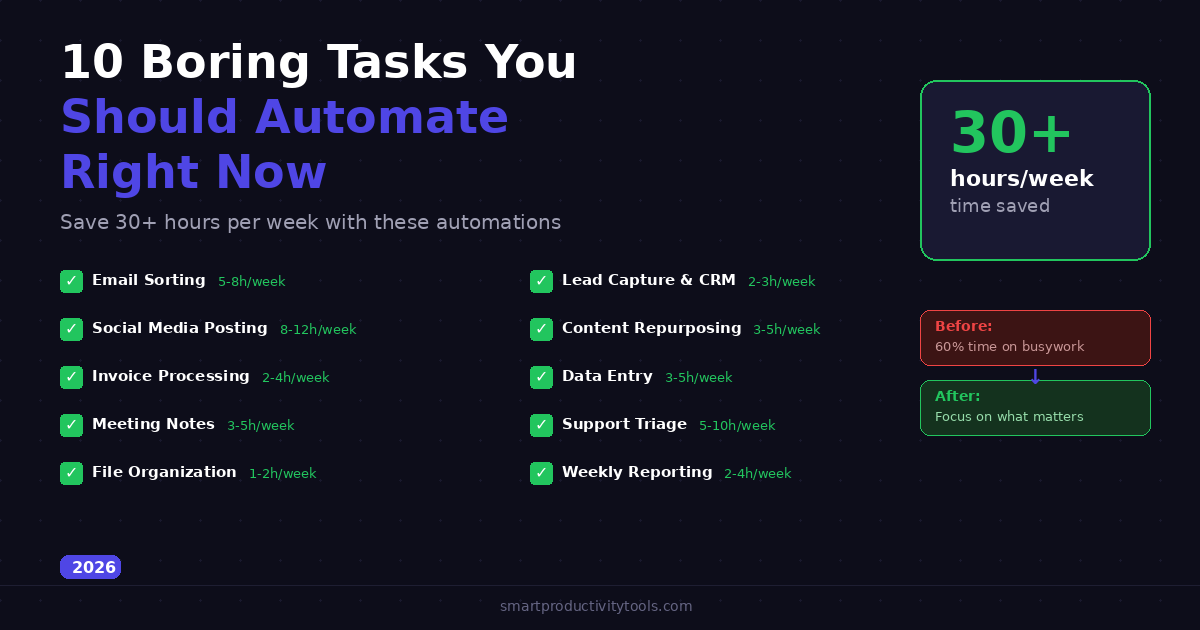
You're spending 60% of your workweek on tasks a computer could handle in seconds. Here are 10 specific automations — with step-by-step instructions — that can save you 30+ hours every week using n8n, Zapier, and Make.

You're spending hours every week on tasks a computer could handle in seconds. Email sorting, data entry, social media posting, invoice processing — the kind of work that feels productive but adds zero strategic value to your business.
The average knowledge worker spends 60% of their time on "work about work" — coordination, status updates, and repetitive processes that could be fully automated. That's roughly 25 hours per week wasted on tasks that don't require human judgment.
In this guide, I'll show you 10 specific tasks you should automate immediately, with step-by-step instructions for each one using tools like n8n, Zapier, and Make. Most of these automations take less than 15 minutes to set up and save hours every week.
How to Decide What to Automate
Before we dive into the list, here's a simple framework for choosing what to automate first:
The Automation Priority Matrix
| Easy to Automate | Hard to Automate | |
|---|---|---|
| High Frequency (daily+) | 🟢 Automate immediately | 🟡 Automate when possible |
| Low Frequency (weekly/monthly) | 🟡 Automate if simple | 🔴 Skip or simplify manually |
The golden rule: Start with tasks that are high frequency + easy to automate. These give you the biggest time savings with the least effort.
Ask yourself three questions about each repetitive task:
- Do I do this more than 3 times per week? If yes, it's worth automating.
- Does it follow the same steps every time? If yes, it's easy to automate.
- Does it require human creativity or judgment? If no, automate it.
Not sure how to prioritize which tasks to automate first? Use the Eisenhower Matrix framework from our Time Management guide.
Now let's look at the 10 best candidates.
Task #1: Email Sorting and Labeling
Time wasted: 30–60 minutes per day
Time to automate: 10 minutes
Tools: Gmail + Zapier or Make
The Problem
Your inbox is chaos. Important client emails get buried under newsletters, notifications, and CC chains. You spend the first 30 minutes of every workday just sorting and triaging.
The Automation
Set up rules that automatically sort incoming emails by sender, subject line, or keywords:
- Emails from clients → labeled "Client" and starred
- Invoices and receipts → labeled "Finance" and forwarded to your bookkeeper
- Newsletter subscriptions → labeled "Read Later" and archived
- Social media notifications → auto-archived (you'll check these on the platforms)
How to Set It Up
Quick version (Gmail filters):
- Open Gmail → Settings → Filters and Blocked Addresses
- Create filters based on "From" addresses or subject keywords
- Apply labels, stars, or forwarding automatically
Advanced version (Zapier/Make):
Create a workflow that watches for new emails matching specific criteria and performs multiple actions — like labeling, forwarding, creating a task in your project manager, AND sending a Slack notification.
| Approach | Complexity | Power | Cost |
|---|---|---|---|
| Gmail native filters | ⭐ Easy | Basic | Free |
| Zapier | ⭐⭐ Medium | Good | From $19.99/mo |
| Make | ⭐⭐ Medium | Advanced | From $10.59/mo |
| n8n | ⭐⭐⭐ Advanced | Maximum | Free (self-hosted) |
Estimated time saved: 5–8 hours per week
Task #2: Social Media Posting
Time wasted: 1–2 hours per day
Time to automate: 30–60 minutes
Tools: n8n + ChatGPT/Claude + Freepik (or Buffer/Hootsuite for simpler setups)
The Problem
Posting consistently across 4–5 social platforms is exhausting. You need different formats for each platform, different image sizes, different hashtags, and you need to post at optimal times. Most solopreneurs either burn out or post inconsistently.
The Automation
Build an AI-powered content pipeline that runs daily on autopilot:
- Content calendar in Google Sheets defines topics for each day
- AI generates platform-specific text (ChatGPT or Claude)
- AI creates matching images (Freepik, DALL-E, or Leonardo)
- Auto-publishes to Facebook, Instagram, LinkedIn, Pinterest, and Telegram
- Logs results back to Google Sheets for tracking
How to Set It Up
I run this exact workflow on a self-hosted n8n instance. The workflow fires every morning at 9 AM, generates content from my content calendar, creates images, and publishes across all platforms.
Simpler alternatives:
- Buffer ($6/mo) — schedule posts manually across platforms
- Hootsuite ($99/mo) — more features, team collaboration
- Later (free tier available) — visual planning, Instagram-focused
| Tool | AI Content Generation | Multi-Platform | Auto-Posting | Monthly Cost |
|---|---|---|---|---|
| n8n + ChatGPT | ✅ Full pipeline | ✅ Unlimited | ✅ | ~$5 (VPS) + $20 (ChatGPT API) |
| Buffer | ❌ Manual only | ✅ 6 platforms | ✅ | $6–120 |
| Hootsuite | ⭐ Basic AI | ✅ 8+ platforms | ✅ | $99+ |
| Manual posting | ❌ | ❌ One at a time | ❌ | Free but slow |
Estimated time saved: 8–12 hours per week
Task #3: Invoice and Receipt Processing
Time wasted: 2–4 hours per week
Time to automate: 20 minutes
Tools: Make or Zapier + Google Sheets
The Problem
Invoices arrive via email in different formats (PDF, image, HTML). You manually open each one, extract the amount, date, and vendor name, and enter it into a spreadsheet or accounting software. It's tedious and error-prone.
The Automation
Create a workflow that:
- Watches your email for messages with invoice-related keywords or from known vendors
- Extracts the attachment (PDF/image)
- Uses AI (GPT-4 Vision or Claude) to read the invoice and extract key data
- Adds a row to your accounting spreadsheet with: date, vendor, amount, category, and a link to the original
How to Set It Up
With Make:
- Create a new scenario
- Add Gmail module → Watch for emails matching "invoice" OR "receipt"
- Add Google Drive module → Save attachment
- Add OpenAI module → Extract structured data from the attachment
- Add Google Sheets module → Append row with extracted data
With n8n:
Use the Gmail trigger → IF node (check for attachments) → OpenAI node (extract data) → Google Sheets node (append row).
Estimated time saved: 2–4 hours per week
Task #4: Meeting Notes and Follow-Ups
Time wasted: 30–60 minutes per meeting
Time to automate: 15 minutes
Tools: Fireflies.ai (or Otter.ai) + Zapier + your project manager
The Problem
During meetings, you're either taking notes (and not fully participating) or participating (and forgetting what was discussed). Then you spend 30 minutes after each meeting writing up notes and sending follow-up emails.
The Automation
Let AI handle the entire post-meeting workflow:
- Fireflies.ai or Otter.ai joins your Zoom/Meet/Teams calls automatically
- It transcribes the entire meeting in real-time
- AI generates a summary with key decisions and action items
- A Zapier/Make workflow automatically:
- Sends the summary to all attendees via email
- Creates tasks in your project manager (Notion, Asana, Trello)
- Posts a summary to the relevant Slack channel
For a full breakdown of Notion's features, see our Notion Complete Guide.
Tool Comparison
| Tool | Auto-Join Calls | AI Summary | Action Item Extraction | Starting Price |
|---|---|---|---|---|
| Fireflies.ai | ✅ | ✅ | ✅ | Free (800 min/mo) |
| Otter.ai | ✅ | ✅ | ✅ | Free (300 min/mo) |
| Fathom | ✅ | ✅ | ✅ | Free (unlimited) |
| Zoom AI Companion | ✅ | ✅ | ⭐ Basic | Included with Zoom |
Estimated time saved: 3–5 hours per week (assuming 5+ meetings)
Task #5: File Organization and Backups
Time wasted: 1–2 hours per week
Time to automate: 15 minutes
Tools: n8n or Zapier + Google Drive/Dropbox
The Problem
Files pile up in your Downloads folder, your Desktop, and random locations across Google Drive. You can never find what you need, and important files aren't backed up.
The Automation
Build a file management system that works automatically:
- Downloads folder cleanup — move files to categorized folders based on file type (.pdf → Documents, .jpg → Images, .xlsx → Spreadsheets)
- Email attachment archiving — save all email attachments to a structured Google Drive folder
- Automated backups — sync important folders to a second cloud service daily
- Naming convention — rename files with date prefixes (2026-03-24_invoice_acme.pdf)
How to Set It Up
With Zapier (email attachments):
- Trigger: New email with attachment in Gmail
- Action: Upload file to Google Drive → specific folder
- Action: Rename file with date prefix
With n8n (advanced file sorting):
Use the Schedule trigger → Read folder → IF node (check file extension) → Move File node → different destination folders.
Estimated time saved: 1–2 hours per week
Task #6: Lead Capture and CRM Updates
Time wasted: 2–3 hours per week
Time to automate: 20 minutes
Tools: Zapier or Make + your CRM (HubSpot, Pipedrive, etc.)
The Problem
When a potential customer fills out your contact form, you manually copy their details into your CRM, send a welcome email, notify your sales team, and add them to a nurture sequence. If you're busy, leads wait hours or days for a response.
The Automation
Create an instant response pipeline:
- Form submitted → trigger fires immediately
- CRM updated → contact created with all form data
- Welcome email sent → personalized, within 60 seconds of submission
- Sales team notified → Slack message with lead details and source
- Nurture sequence started → automated email drip campaign begins
- Spreadsheet logged → backup record in Google Sheets
Quick Setup with Zapier
This is where Zapier excels — its 8,000+ app library means your specific form tool and CRM are almost certainly supported.
- Trigger: New submission in Typeform/Google Forms/JotForm
- Action 1: Create contact in HubSpot/Pipedrive
- Action 2: Send email via Gmail/Mailchimp
- Action 3: Post message to Slack channel
- Action 4: Add row to Google Sheets
Estimated time saved: 2–3 hours per week + faster lead response = more conversions
Task #7: Content Repurposing
Time wasted: 3–5 hours per piece of content
Time to automate: 30 minutes
Tools: n8n or Make + ChatGPT/Claude
The Problem
You write a blog post, and it lives only on your blog. But that same content could be a Twitter/X thread, a LinkedIn post, an email newsletter, a YouTube script, and a series of Instagram carousel slides. Manually repurposing takes almost as long as creating the original.
The Automation
Build a workflow that transforms one blog post into 5+ content pieces:
| Input | Output | Platform | AI Prompt |
|---|---|---|---|
| Blog post URL | Thread (8–12 tweets) | Twitter/X | "Convert this article into a Twitter thread. Keep each tweet under 280 characters." |
| Blog post URL | Professional summary | "Write a LinkedIn post summarizing the key insights. Include a hook and CTA." | |
| Blog post URL | Newsletter email | Email list | "Create a newsletter email highlighting the top 3 takeaways." |
| Blog post URL | Video script | YouTube | "Write a 5-minute YouTube script based on this article." |
| Blog post URL | Key quotes + images | "Extract 5 quotable sentences for Instagram carousel slides." |
How to Set It Up
With n8n:
- Trigger: New post published on your blog (RSS or webhook)
- HTTP Request node: Fetch the full article text
- Multiple AI nodes: Generate content for each platform
- Publishing nodes: Post to each platform via API
Estimated time saved: 3–5 hours per blog post
Task #8: Data Entry and Spreadsheet Updates
Time wasted: 3–5 hours per week
Time to automate: 15 minutes
Tools: Make or Zapier + Google Sheets
The Problem
You manually copy data between apps: form responses to spreadsheets, CRM data to reports, order details to inventory sheets. It's the most mind-numbing work possible, and errors are inevitable.
The Automation
Connect your data sources directly to your spreadsheets:
- New form submission → automatically added as a new row
- CRM deal updated → dashboard spreadsheet refreshes
- New order received → inventory sheet deducted, revenue sheet updated
- Daily stats → API data pulled and logged (website traffic, social followers, revenue)
Why Make Excels Here
Make's visual builder is purpose-built for data transformation. You can:
- Split arrays into individual rows
- Merge data from multiple sources
- Filter records based on conditions
- Format dates, numbers, and currencies
- Handle errors gracefully (log failures, retry later)
Estimated time saved: 3–5 hours per week
Task #9: Customer Support Triage
Time wasted: 1–3 hours per day
Time to automate: 45 minutes
Tools: n8n or Zapier + AI + your helpdesk
The Problem
Support emails pile up. Each one needs to be read, categorized, and routed to the right person. Simple questions (business hours, return policy, pricing) get the same manual treatment as complex technical issues.
The Automation
Build an AI-powered support triage system:
- New support email arrives
- AI analyzes the content and classifies it: billing, technical, general inquiry, complaint, urgent
- Simple questions get an instant AI-generated response (with human approval or auto-sent)
- Complex issues get routed to the right team member with a priority label
- All tickets logged in a spreadsheet with category, sentiment, and response time
Classification Accuracy
Modern AI models (GPT-4, Claude) can classify support emails with 90–95% accuracy. For the remaining edge cases, route to a human reviewer.
| Email Type | AI Action | Human Needed? |
|---|---|---|
| FAQ / simple question | Auto-respond with template | ❌ No |
| Billing / refund request | Create ticket, notify billing team | ✅ For approval |
| Technical issue | Route to tech support with diagnosis | ✅ Yes |
| Complaint / angry customer | Flag as urgent, notify manager | ✅ Yes |
| Spam / irrelevant | Auto-archive | ❌ No |
Estimated time saved: 5–10 hours per week
Task #10: Weekly Reporting and Dashboards
Time wasted: 2–4 hours per week
Time to automate: 30 minutes
Tools: n8n + Google Sheets + Notion (or any reporting tool)
The Problem
Every Monday, you spend hours pulling data from Google Analytics, your CRM, social media platforms, and financial tools to create a weekly report. Then you format it, add commentary, and send it to stakeholders.
The Automation
Build an automated weekly report pipeline:
- Scheduled trigger fires every Monday at 8 AM
- API calls pull data from all your tools:
- Google Analytics → website traffic, top pages, conversion rate
- Stripe/PayPal → revenue, new customers, churn
- Social media → followers, engagement, top posts
- CRM → new leads, deal pipeline, closed deals
- AI generates a summary with key insights and recommendations
- Google Sheets updates with raw data (for historical tracking)
- Email sends the formatted report to stakeholders
- Slack posts a quick summary to the team channel
Report Template Structure
| Section | Data Source | Key Metrics |
|---|---|---|
| Website Traffic | Google Analytics | Sessions, users, bounce rate, top pages |
| Revenue | Stripe / PayPal | MRR, new customers, churn rate |
| Social Media | Platform APIs | Followers, engagement rate, best post |
| Sales Pipeline | CRM | New leads, deals closed, pipeline value |
| AI Insights | ChatGPT/Claude | Week-over-week changes, recommendations |
Estimated time saved: 2–4 hours per week
Total Time Savings Summary
| Task | Weekly Time Saved | Setup Time | Difficulty |
|---|---|---|---|
| #1 Email Sorting | 5–8 hours | 10 min | ⭐ Easy |
| #2 Social Media Posting | 8–12 hours | 30–60 min | ⭐⭐⭐ Advanced |
| #3 Invoice Processing | 2–4 hours | 20 min | ⭐⭐ Medium |
| #4 Meeting Notes | 3–5 hours | 15 min | ⭐ Easy |
| #5 File Organization | 1–2 hours | 15 min | ⭐ Easy |
| #6 Lead Capture & CRM | 2–3 hours | 20 min | ⭐⭐ Medium |
| #7 Content Repurposing | 3–5 hours | 30 min | ⭐⭐ Medium |
| #8 Data Entry | 3–5 hours | 15 min | ⭐ Easy |
| #9 Customer Support Triage | 5–10 hours | 45 min | ⭐⭐⭐ Advanced |
| #10 Weekly Reporting | 2–4 hours | 30 min | ⭐⭐ Medium |
| TOTAL | 34–58 hours/week | ~4 hours | — |
That's potentially an entire workweek recovered. Even automating just the top 3 tasks saves 15–25 hours per week.
Which Automation Tool Should You Use?
The best tool depends on your technical comfort level:
| Your Profile | Best Starting Tool | Why |
|---|---|---|
| Non-technical, just getting started | Zapier | Easiest setup, largest app library |
| Comfortable with visual tools | Make | Best value, powerful visual builder |
| Technical, want maximum control | n8n (self-hosted) | Free, unlimited, most powerful |
| Want AI-heavy workflows | n8n | Best AI integration capabilities |
For a detailed comparison with pricing calculations, read our n8n vs Zapier vs Make guide.
Getting Started: Your First Week
Don't try to automate everything at once. Here's a realistic first-week plan:
Day 1–2: Set up Gmail filters (Task #1). Free, instant impact.
Day 3–4: Connect your forms to your CRM/spreadsheet (Task #6). Quick win with Zapier's free plan.
Day 5–7: Set up meeting transcription with Fireflies.ai (Task #4). Free tier is generous.
Week 2+: Tackle the bigger automations one at a time — social media posting, content repurposing, and reporting.
The key is momentum. Each small automation win builds confidence and reveals new opportunities for optimization.
The Bottom Line
Automation isn't about replacing humans — it's about freeing humans to do work that actually matters. The 10 tasks in this guide are the low-hanging fruit: high frequency, easy to automate, and immediate time savings.
Start with one task today. Even if it only saves 30 minutes per week, that's 26 hours per year — more than three full workdays — returned to you for strategic thinking, creative work, or simply logging off earlier.
The tools are mature, the setup is straightforward, and the ROI is immediate. The only question is which boring task you'll eliminate first.
Want to learn how to build these automations step by step? Subscribe for detailed tutorials on each workflow, including ready-to-import templates for n8n, Zapier, and Make.
Need free tools to get started? Check our complete guide to free AI tools for solopreneurs.
For meeting best practices from Bezos, Musk, and Oprah, see our meeting rules guide.
Frequently Asked Questions
Do I need coding skills to automate these tasks?
No. Tasks #1, #4, #5, #6, and #8 can all be automated with zero coding using Zapier or Make. Tasks #2, #3, #7, #9, and #10 benefit from more advanced tools like n8n, but even these can be simplified with pre-built templates.
How much does automation cost?
It ranges from completely free (Gmail filters, Fireflies.ai free tier, n8n self-hosted) to $20–100/month for cloud automation tools. The general rule: if an automation saves you more than 1 hour per week, it's worth paying for.
What if an automation breaks?
All modern automation tools have error handling. Zapier retries failed tasks automatically. Make has error handler routes. n8n has custom error workflows. Most failures are caused by expired API tokens or changed data formats — quick fixes once you know where to look.
Which single automation gives the biggest ROI?
For most people, it's email sorting (Task #1) or social media automation (Task #2). Email sorting is free and saves 5+ hours per week immediately. Social media automation has a steeper setup but saves 8–12 hours per week and directly impacts revenue through consistent content publishing.
Can I automate tasks that involve human judgment?
Partially. AI has made it possible to automate tasks that previously required human judgment — like classifying support emails, generating content, or extracting data from invoices. The key is building in human review checkpoints for important decisions while letting AI handle the routine work.
What's the best automation for a solopreneur?
Start with email sorting (free), meeting transcription (Fireflies.ai free tier), and form-to-spreadsheet connections (Zapier free plan). These three automations cost $0 and save 10+ hours per week. Once you see the value, invest in social media automation and content repurposing.
How do I measure if an automation is working?
Track two metrics: time saved (compare before vs after) and error rate (how often the automation fails or produces incorrect results). Most automation tools provide execution logs and success/failure counts. If an automation saves time but has a high error rate, it needs refinement.